
how to use Power BT tools in Microsoft Excel
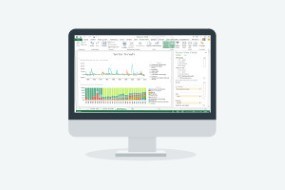

This free online course teaches you how to use the tools in Power BI with MS Excel to create comprehensive business intelligence data presentations.
Business intelligence is a technological way of analysing data and clearly presenting that information, to help make informed business decisions. Microsoft Excel 2013 has many tools and capabilities that enable you to do this. Complete this free online course to learn how you can use Excel 2013 with Microsoft?s Power BI tools to clearly display business-related data through queries, data models, Power views and Power maps.
What You Will Learn In This Free Course
Introduction To Excel 2013 Power BI
In this module you will be introduced to Power BI, you will learn about what power BI is and how to setup Power BI Tools for Microsoft Excel. You will learn about creating a power query, to get data form a web page. You will learn about modifying the query and adding the data from the query to your Excel worksheet.
Preparing The Data Model
In this module you will be introduced to preparing your Data model, you will learn about how preparing your data model will affect your Power view. You will learn about setting up the Default fields and table behaviour for when you create your power view. You will learn about adding a url image to your data table/s.
Creating Power Views
In this module you will be introduced to creating power views, you will learn about adding data from your tables to the power view. You will learn about different visualizations you can use to display your data in power view. You will learn about interacting with the reports in your Power view to get them to display different data. You will learn about tilling a card report so it won?t affect your other reports in the same power view it?s in. you will learn about adding a simple map to display i
Creating Power Maps
In this module you will be introduced to creating Power Maps, you will learn about creating a power map and what data you may have to change or unhide in the data model for you power map to work. You will learn about how power maps uses Bing maps and will need geographical information to work. You will learn about creating new scenes and displaying your data on a power map. You will learn setting the transition between your scenes and creating a video out of your finished power map.
Course assessment
User Reviews
Be the first to review “how to use Power BT tools in Microsoft Excel”
You must be logged in to post a review.





There are no reviews yet.