
How to create Azure Virtual Machines and Windows Sandbox
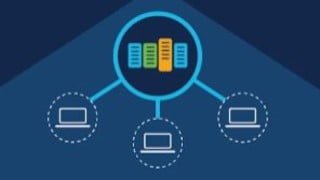

Learn how to create and manage virtual machines in Azure. This beginner-friendly course covers everything from setting up a Windows VM to deploying a web server and connecting via RDP. Perfect for Azure administrators and those new to virtual machines.
What you’ll learn
- Create a Windows virtual machine using the Azure portal
- Create an Ubuntu Server virtual machine
- Install Web server inside virtual machine
- Connect to virtual machine with Remote Desktop Protocol (RDP)
- Provision and deploy virtual machines
- Open a network port for web traffic
- Clean up resources
A virtual machine, commonly shortened to just VM, is no different than any other physical computer like a laptop, smart phone, or server. It has a CPU, memory, disks to store your files, and can connect to the internet if needed. While the parts that make up your computer (called hardware) are physical and tangible, VMs are often thought of as virtual computers or software-defined computers within physical servers, existing only as code.
Virtualisation is the process of creating a software-based or “virtual” version of a computer, with dedicated amounts of CPU, memory and storage that are “borrowed” from a physical host computer — such as your personal computer — and/or a remote server — such as a server in a cloud provider’s datacentre. A virtual machine is a computer file, typically called an image, that behaves like an actual computer. It can run in a window as a separate computing environment, often to run a different operating system — or even to function as the user’s entire computer experience— as is common on many people’s work computers. The virtual machine is partitioned from the rest of the system, meaning that the software inside a VM can’t interfere with the host computer’s primary operating system.
Here are a few ways virtual machines are used:
Building and deploying apps to the cloud.
Trying out a new operating system (OS), including beta releases.
Spinning up a new environment to make it simpler and quicker for developers to run dev-test scenarios.
Backing up your existing OS.
Accessing virus-infected data or running an old application by installing an older OS.
Running software or apps on operating systems that they weren’t originally intended for.
Azure virtual machines (VMs) can be created through the Azure portal. This method provides a browser-based user interface to create VMs and their associated resources. In this hands-on lab, we will use the Azure Portal to create and connect to an Azure virtual machine. We will log in to the Azure Portal and create a virtual machine. Then, we will connect to the virtual machine via RDP.
Who this course is for:
- Beginner Azure Administrator
- Beginners to Virtual Machines
User Reviews
Be the first to review “How to create Azure Virtual Machines and Windows Sandbox”
You must be logged in to post a review.





There are no reviews yet.