
iPhone Photography: Viral Hacks & Learn Adobe Lightroom App
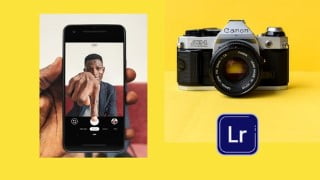

Learn how to edit pictures on your iPhone using the built-in Photos app and Adobe Lightroom App. Enhance color, brightness, sharpness, and more. Turn ordinary photos into stunning edits with this tutorial. Perfect for anyone looking to transform their average images into amazing ones.
What you’ll learn
- how to edit pictures on your iPhone using the built-in Photos app
- Low Light Photo Editing
- You will learn how to turn your ordinary photos into stunning edits
- You will learn the Amazing Adobe Lightroom App
In this tutorial, you’ll discover how to edit pictures on your iPhone using the built-in Photos app, and using Adobe Lightroom App, you will learn how to turn your ordinary photos into stunning edits!
Adjust Color, Brightness & Sharpness
Knowing how to edit photos on iPhone allows you to turn an average image into an amazing one!
Auto Enhance
The Auto tool automatically adjusts the colors and brightness levels in your photo.
Brilliance
The Brilliance tool is great for bringing out details and making your photo look richer and more vibrant.
Highlights
The Highlights tool adjusts the brightness of only the bright areas in your photo.
Shadows
The Shadows tool adjusts the brightness of only the dark areas in your photo.
Contrast
The Contrast tool adjusts the contrast between the dark and bright tones in your photo.
Brightness
The Brightness tool brightens or darkens your photo. But it does it in a slightly different (and usually better) way from the Exposure tool.
Black Point
The Black Point tool affects the brightness of only the darkest tones in your photo.
Saturation
The Saturation tool makes the colors more vibrant or less vibrant.
Vibrance
The Vibrance tool makes muted colors more vibrant without affecting skin tones or saturated colors too much
Warmth
The Warmth tool makes the colors in your photo warmer or cooler.
Sharpness
The Sharpness tool sharpens detail in your photo by making edges crisper and more defined.
Definition
The Definition tool adjusts contrast to improve the clarity of detail in your photo.
Noise Reduction
The Noise Reduction tool reduces “digital noise” – such as grain caused by shooting in low light. You can also get grain in your photos when editing, e.g., if you brighten the shadows too much.
Who this course is for:
- Anyone who wants to turn ordinary photos into stunning edits
User Reviews
Be the first to review “iPhone Photography: Viral Hacks & Learn Adobe Lightroom App”
You must be logged in to post a review.





There are no reviews yet.