
Realism Masterclass: realistic digital art
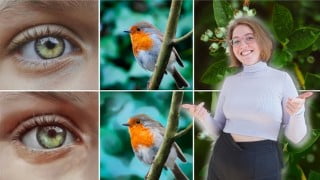

Learn how to create realistic images on the iPad with this comprehensive course. From photo analysis to setting shadows and highlights, you’ll gain practical skills in digital art. Get instant access to video lessons, downloadable materials, and tips from a professional illustrator. Suitable for beginners and advanced students looking to enhance their artistic abilities. Satisfaction guaranteed with a 30-day money-back guarantee. Start your journey towards creating visually stunning and lifelike images today!
What you’ll learn
- How to create digitally realistic images
- Photo analysis
- Creation of sketch
- Difference between Greyscale and Colour
- Application of shades of gray and colors
- Set shadows correctly
- The effective elaboration of your image
- Recognize highlights and set them correctly
Do you also wish you could create realistic images on the iPad?
Do you want to fully understand realism in images in a practical way?
Then this course is for you!
In this course you will learn everything about the following topics: Analyzing the photo, creating a sketch, the difference between greyscale and color, using grayscale and color, setting shadows correctly, working out your image effectively, recognizing and setting highlights correctly.
You get instant access to:
Detailed & hands-on video lessons to follow along with your work
12 helpful materials to get the most out of your learning, downloadable to practice anywhere
Access to the Procreate Community. Exchange with all course members
Tips from (full-time) illustrator Wencke
Lifetime access to the course and all future updates
But what will you learn in detail in this course?
Sketching: First of all, you will learn to analyze a real photo (in this case a plant) correctly in order to be able to implement everything realistically in your drawing afterwards. When you have finished analyzing the photo, you will start drawing the sketch. How important is the sketch anyway? At the end of this section you will have a finished sketch.
Color or grayscale: What are the differences between “greyscale” and “color blocking”? Both terms will be covered in detail and you will understand the use of greyscale and color after completing this section.
Setting shadows: If you look closely at the plant image, you will notice many small and large shadows that add depth to the photo. This is exactly what you want to do in your drawing. In this section you will learn how to do this and what you need to keep in mind.
Elaboration of the image: So far you have your plant in black and white. We want to change that in the penultimate section of the first project by converting the greyscale to color. In addition, you’ll now get rid of the sketch and start effectively working out your image.
Add realism with highlights: As the name of the section suggests, you now add the final touch to your image. You can add realism to your image with light reflections and other smaller highlights.
Add blur: In photography, you often work with depth of field, which is something we want to implement in our drawing, of course. Therefore, in the last section of the project “Plant” you set the appropriate blur in the background to complete the realism.
The last two sections:
You’ve gone through all the steps in the previous lessons to create as realistic a result as possible, and hopefully you now have a realistic-looking plant in front of you. To deepen the whole thing again and also use other motifs we decided to draw a bird and a human eye and repeat the steps basically. Of course, with both bonus motifs you have to pay more attention to the proportions, which was rather secondary with the plant. Feel free to check out the free course preview to see for yourself the quality of the course.
Do you need Procreate?
Wencke shows you all the things taught in this course on the iPad using the Procreate app. Of course, you can also use the design principles in any other digital drawing software. This course does not cover how to use Procreate properly. For that we have created a great masterclass, which you can find on our instructor profile. You can also use any other drawing software.
Our Satisfaction Guarantee
We have a 30 day 100% money back guarantee. So if you are not satisfied with your purchase, you will get all your money back immediately!
We look forward to welcoming you to the first lesson of the course!
Wencke & Marius
Who this course is for:
- Beginners who want to bring realism into their pictures
- Advanced students who want to learn from a real professional
User Reviews
Be the first to review “Realism Masterclass: realistic digital art”
You must be logged in to post a review.



There are no reviews yet.